Showing posts with label truecrypt. Show all posts

Thursday, October 22, 2009

Worried About The Evil Maid?

Joanna Rutkowska's "Evil Maid" TrueCrypt attack has been getting a lot of buzz in security circles today. In essence, the attack involves compromising the trust that TrueCrypt (and the user) places in the boot process. An evil maid (or other ne'er-do-well) exploits their physical access to a machine and that machine's capability to boot from external media such as a USB device to add a keylogger or other trojan to the boot sector or firmware, allowing capture of the presumably unchanging decryption key that the user enters to access their filesystem.

Am I particularly concerned about this as an attack against my organization's resources? Of course not!

We do use encryption on our mobile systems - not TrueCrypt, but the caution is largely against the concept, not necessarily only Rutkowska's specific implementation. With that said, a simple risk assessment serves us in good stead. Is our data so valuable, or are maids so twisted that we have to worry about them attempting to access our laptops which (hopefully) we lock in safes in hotel rooms, or otherwise appropriately protect? No - none of the people that I work with are in Her Majesty's Secret Service, or otherwise likely to be high value targets.

The good news is that Rutkowska's implementation of this attack serves as a good reminder that our trust in enterprise drive encryption is much like any other technological solution in our daily security war - simply a stage in the escalation of tools.

Years ago, we recommended passwords on laptops. Then, legislation and more technically aware users pushed us to drive encryption. Next, as attacks like this become more widely approachable, we'll worry about how to use TPM, drive hashing, two factor authentication, or technologies that can guarantee the state of a system between uses. For now, I'm far more worried about malware installed on systems either via a vulnerability or a user's mistake. Why? Because our drive encryption efforts do nothing when the drive is unlocked for the user's daily work.

For your daily security efforts, you can likely worry about much more immediate security concerns - and in the meantime, if your maid cackles evilly, and speaks in l33t - you may want to guard your USB ports.

Thursday, August 21, 2008

TrueCrypt 6.0a How To: Free Full Disk Encryption in Windows XP

Our HOWTO: Windows full disk encryption with TrueCrypt 5.0 article is the most popular article we've published on Devil's Advocate Security with over 900 page views, and we're past due to write an updated article about TrueCrypt 6.0a.

A number of changes were made between 5.0 and 6.0a. These include:

  • Support for encrypted hidden operating systems with plausible deniability
  • Hidden volume creation for MacOS and Linux
  • Multi-core/multi-processor parallelized encryption support
  • Support for full drive encryption in XP and Vista even with extended and/or logical partitions
  • A new volume format which increases performance, reliability, and expandability
  • A number of bug-fixes and other features.
Last time I wrote about TrueCrypt, I noted that MacOS full disk encryption wasn't available on the market yet. Since that time, CheckPoint has put a full commercial version of their full disk encryption software on the market, and other vendors have released their products into beta. I'll report here when I get my hands on a them for testing.

Without further ado, here is our TrueCrypt 6.0a Windows installation walk-through.

TrueCrypt full disk encryption walkthrough

1. Download TrueCrypt and install it. Accept the license, and select "Install" as your option rather than "Extract". TrueCrypt will ask you for a number of setting options - if you are unfamiliar with them, the defaults should be reasonable for most users. Once you click next, you'll see a message that TrueCrypt has sucessfully installed. Click OK, then click Finish and continue onwards.

2. Start TrueCrypt - if you did a default install, you will have a blue and white key icon on your desktop. TrueCrypt will ask you to read the tutorial if you haven't read it before. Once you've through, you'll see the TrueCrypt main window.
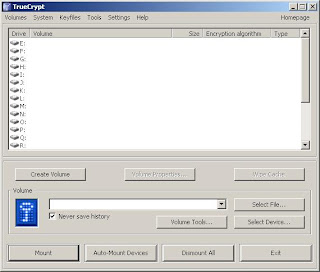


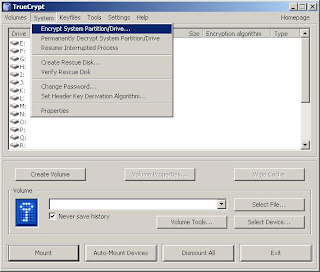
3. Select System, then Encrypt System Partition/Drive.

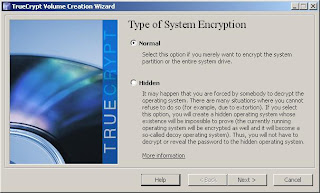
4. If you want to create a hidden operating system for plausible deniability, this is when you should select the "Hidden" option. For the purposes of this walk-through, we will simply do a "Normal" installation with the intent of protecting data, rather than hiding it.
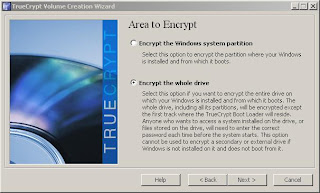
5. Now you need to choose whether you will encrypt just the Windows system partition, or the entire drive. If you have performance concerns, you may opt to encrypt just the Windows system partition, however for the greatest security, you'll likely want to encrypt the entire drive. For this example, we will encrypt the entire drive, which is the default setting.

6. TrueCrypt will ask about Host Protected Areas, which may contain your system diagnostics, RAID tools, or other data. If you're unsure, you should likely select "no" for safety. Most programs do not store sensitive data in the HPA.
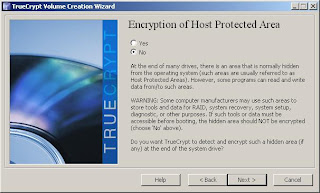

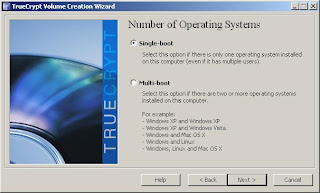
7. If you are running a multi-boot system with multiple operating systems, the next question is relevant for you. For most users, selecting Single Boot for their single OS is the route to take. We'll go with single boot for this walk-through.

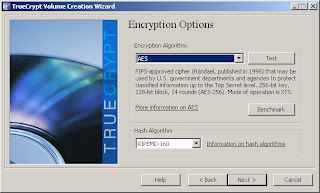
8. Now you need to select your encryption options - the defaults of AES and RIMEMD-160 should be find for most users. If you have specific compliance requirements, make sure you meet them here.

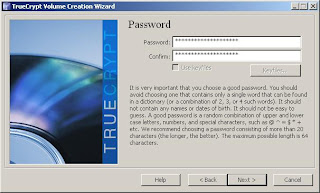
9. Type your password, or better, a strong passphrase. This will let you access your drive, so you must remember this passphrase!
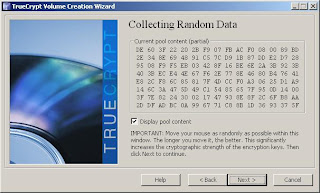
10. Now TrueCrypt gathers mouse movement to generate a random seed for your encryption. Move your mouse around randomly, and then click next to let it generate your keys.
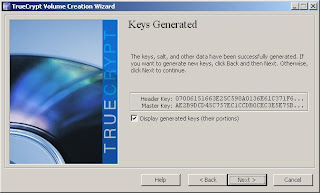

11. TrueCrypt forces you to create a TrueCrypt Rescue Disk, which allows you to restore your boot loader if it is damaged, lost, or you otherwise cannot access the TrueCrypt volume. By default, it will save an ISO file to your My Documents folder. You will need to burn the ISO to a CD, and then let TrueCrypt verify that it works.
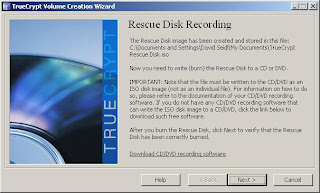
12. Burn your ISO with your favorite CD burning software, then verify it.
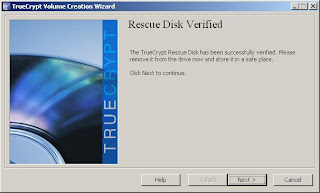
13. Now select the wipe mode that you'd like to use. For most users, a 3 pass wipe will be sufficient, although for day to day use, no wipe is likely ok. If you do choose a wipe mode, you will be notified that each wipe will increase the encryption time. Once you click Next, a window of notes to print about the encryption process will pop up. Click OK, and "Yes" when asked if you're ready to reboot.
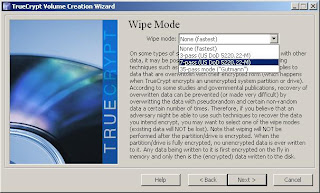
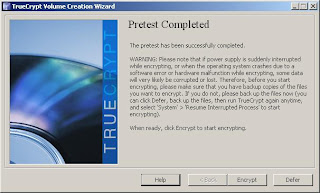
14. TrueCrypt will ask you to test the encryption by rebooting. This is a good time to make sure that you have your password recorded properly! After rebooting and providing your password, the pretest is complete. Select "Encrypt", print the notes if you would like to have them available, and your drive encryption will begin.
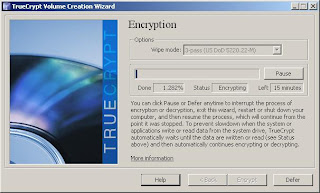

The encryption process is typically quite fast, but will vary with the size of your drive. The demonstration drive is running in a VM, and is an 8 GB partition. Real time to complete with no wipe was approximately 15 minutes.

15. When you reboot, simply enter your password, and your encrypted partition will unlock. Your normal OS boot will occur.
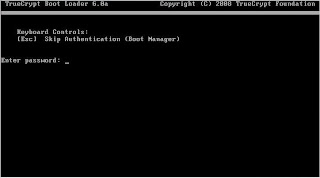

You now have a fully encrypted disk. Make sure you remember your password and keep your rescue CD in a safe place!

Thursday, February 7, 2008

HOWTO: Windows full disk encryption with TrueCrypt 5.0

UPDATE: If you're here for TrueCrypt installation details, check out our How-To for TrueCrypt 6.0a.

As promised, I've begun to test TrueCrypt's full disk encryption capability. For personal, one-off full disk encryption, and particularly for free, it appears to be a compelling product. It doesn't have any of the enterprise features that you will find in many of the current commercial products - there is no provision for key escrow, central reporting, or other features suited to enterprise use, but the software itself has a clean interface and is reasonably straightforward.

In my testing thus far, I've run into one crucial problem - I can't get a clean ISO burn of the restore disk. With no method to skip the process, and no work-around to simply check the rescue disk image against what it expects, there is no way to move past the CD/DVD check screen without some trickery.

I've tried on multiple machines, burned the image using three different ISO recording packages - all of which work for other ISO files, and TrueCrypt refuses to recognize the burn. The good news is that you can fool it for testing purposes - grab the free Microsoft virtual CD mounting program here.

You'll need to install and start the driver included in the package first, then you can mount the ISO. This doesn't do you any good for actual rescue - but it will let you successfully test the full volume encryption.

If you are taking TrueCrypt's full disk encryption for a test drive, make sure you do it on a test machine first! This is entirely at your own risk.

TrueCrypt full disk encryption walkthrough

1. Download TrueCrypt and install it.

2. Start TrueCrypt, and select System, then Encrypt System Partition/Drive.


3. Select Encrypt System Partition/Drive. TrueCrypt spend a moment or two detecting hidden sectors, and will then display a menu asking for the number of operating systems. In this example, there is only one operating system, so we will select Single-boot, then click Next.


4. Select your encryption options. I'll select AES as a reasonable choice - there are a number of schemes, including multi-algorithm options if you're particularly paranoid or have special encryption requirements. Note that RIPEMD-160 is the only supported hash algorithm for system volume encryption.


5. You will be asked to create a password - passwords over 20 characters are suggested by TrueCrypt. It will then use mouse movements to generate a random seed to feed into the encryption algorithm. Click Next again on the next screen unless you want to re-generate your keys.

6. Now you will have to create a rescue disk. This acts as a rescue disk for damaged boot loaders, master keys, or other critical data, and will also allow permanent decryption in the case of Windows OS problems. It also contains the contents of the disk's first cylinder where your bootloader usually resides. Provide a filename and location for the rescue disk.

7. TrueCrypt will now ask you to burn the rescue disk image to CD/DVD. You cannot proceed without allowing TrueCrypt to verify that this has been done.


8. If you make it this far - and as I mentioned earlier, some burning software appears to not be TrueCrypt ISO friendly, then you're ready to go on with the encryption process. First, you will receive confirmation that your rescue CD is valid.


9. Now you need to choose your wipe mode - this is how your deleted data will be wiped from the disk. Select the mode that you're most comfortable with - for my own use, I'll select 3 pass wiping as a reasonable option.


10. TrueCrypt will now perform a System Encryption Pretest - it will install the bootloader and require your password to get into the OS.

11. Once you've rebooted and successfully entered your password, you will receive a success message. TrueCrypt will then ask you to print the documentation for your rescue disk for future reference. Click ok, and you will move on to the encryption process.


12. Your time to completion will depend on usage of the system, the size and speed of the disk, and a few other factors such as the wipe mode you selected. In my small scale test, a 4 GB test VM partition encrypted in about 15 minutes. I would expect non-virtual machines to see a performance boost over that, and machine that aren't seeing active use should move along at a nice clip.

What does it look like when you're done? Well, on boot, you'll see a DOS style prompt for your password, after which everything else acts just like your normal machine.


What's next? I'd like to find out if others are having similar issues with TrueCrypt's ISO creation process, and I'm interested in seeing performance differences between this and commercial products - hopefully someone with a nice test lab will benchmark them. MacOS support for encrypted volumes would be a great addition, and is one that I hope that the MacOS TrueCrypt port team tackles in the near future - I haven't found a vendor providing OS X full disk encryption yet, and that's definitely something the market needs.

Wednesday, February 6, 2008

TrueCrypt 5.0 - Full disk boot encryption

TrueCrypt 5.0 is out, and full disk, pre-boot authenticated encryption is now available. I can't wait to test this out, as it provides an interesting alternative to current commercial products. The description states:

...ability to encrypt a system partition/drive (i.e. a partition/drive where Windows is installed) with pre-boot authentication (anyone who wants to gain access and use the system, read and write files, etc., needs to enter the correct password each time before the system starts).
I'll post more after I've had a chance to try it out.

Wednesday, January 23, 2008

TrueCrypt for OS X is live

The OSXCrypt.org TrueCrypt for OS X project is live and available as an alpha release - you can grab the first release on the site. Remember, this is an alpha, so treat it as a useful test, but it is a sign of good things to come.

Readers may recall that this is a community funded effort using Fundable.com, and that I had posted about this before in October and December.

Monday, December 17, 2007

OSXCrypt - TrueCrypt for OS X status update

Frequent readers may recall me posting about a donation funded port of TrueCrypt for OS X. The group just published their first update.

It sounds like they're taking on a bit more than a simple TrueCrypt port, as the post notes that:

...we realized that this project will not be a simple port of truecrypt to Mac OS X, but this will provide a multiple enciphered disks support encryption platform for the Apple operating system.
Right now the project has a simple XOR'ing kernel module, but progress is being made. I continue to hope that TrueCrypt support of OS X becomes a practical endeavor through this project.

Thursday, October 11, 2007

Help fund a MacOS port of TrueCrypt

If you're like me, you use TrueCrypt for storing sensitive data. While MacOS has a capable encryption capability, having portable encrypted volumes is nice. There's a community effort to fund a port of TrueCrypt for MacOS - a great way to help make software you want available.

Make sure you read the Fundable FAQ - it is an interesting service, based on a 7% fee for funds gathered. Slashdot has discussed uses of Fundable for open source software projects, and other sites have discussed it as well.